Mini-Exercise 1 Snowy Owls In this example post, I wanted to choose something I'm interested in, but not yet very knowledgeable about, so I picked snowy owls. Having grown up in Upstate New York, and now living not far from Toronto in Canada, I've seen a few snowy owls. On
Mini Exercise 1 - Testing Your Skills You've learned a lot of new tools to help you make your blog posts visually pleasing, interesting, and useful to your readers. It's time to put your new skills to the test! Estimated time to complete - 10 to 20 minutes. What you'll need
Ghost Forum In this lesson, you'll learn about the Ghost Forum. Another source of help for Ghost is the Ghost Forum at https://forum.ghost.org/ As with the Ghost Help Center, I encourage you to familiarize yourself with the Ghost Forum before you actually need it. You may also
Ghost Resources In this lesson, you’ll learn about Ghost Resources as a source of help. If you’re looking for help, Resources & Guides or the Ghost Resources dropdown from the Ghost Help Center may provide what you need. You can get there by clicking on your profile link in the
Ghost Help Center In this lesson you'll learn about the Ghost Help Center. Probably your first stop when seeking help will be the Ghost Help Center web site. You can get there either by browsing to https://ghost.org/help, or by clicking on clicking on your user ID in the
Moving Items Within A Post In this lesson, you'll learn how to move items around in a post, or rearrange a post. Sometimes, as you're creating your posts, it may become apparent that the post would flow better if some items were rearranged. Thankfully, this is easy to do in your
Adding Code Blocks In this lesson, you'll learn how to add code blocks. At times, you'll have longer snippets of code, or partial or complete programs or scripts, that don't fit in a sentence and may take several lines. These are good cases for adding a code
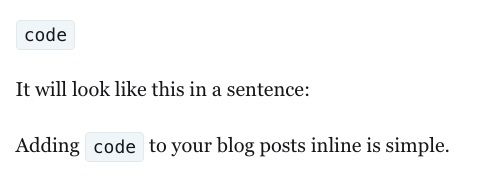
Adding Code Inline In this lesson, you'll learn how to add inline code to your posts. Adding code inline makes the code stand out from the rest of the text, makes it obvious that it is code, and makes it easy for readers to copy, saving them from additional typing or
Embedding Tweets In this lesson, you'll learn how to embed Twitter Tweets in your posts. Click on +, scroll down, and click on Twitter. thank goodness @elonmusk fixed twitter's bot problem pic.twitter.com/JoubVnJIY7 — Molly White (@molly0xFFF) December 23, 2022
Embedding YouTube Videos In this lesson, you'll learn how to embed YouTube videos into your posts. Click on +, scroll down, and click on YouTube. Paste the URL into the text box and hit [Enter]. Add a Caption for your video. That's it for embedding a YouTube video in your
Adding Headers In this lesson, you'll learn how to add a Header to your posts. Click on +, scroll down, and click on Header. Headers are Huge They're really big! I'm not sure what Ghost was going for here. Perhaps some kind of banner for a product
Adding a File to a Post In this lesson, you'll learn how to add a file to a post. Click on +, scroll down, and select File. Hello world Hello World! your first BASH Script. Hello-world.sh 66 Bytes download-circle You'll want your file to be related to your blog post and you&
Adding Audio Files to Posts As with any other Dynamic Card, to add an Audio card, click on +, scroll down to Audio, and click on it. Browse to the file you want, click on Audio, then click Open. The audio clip in the post describes how to add an audio clip to a post. As
Adding Video Clips In this lesson, you'll learn how to add video clips to your posts. Click on +, scroll down to Video, and click on it. 0:00/1× For Ghost's most inexpensive hosted option, there's a 5 megabyte size limit for your video files. For larger
Adding Toggles Toggles let your readers see a summary view of some topics they can click for a more detailed explanation. To add a toggle, click on the + then select Toggle. This is the toggle header This is what the reader sees when the toggle is expanded!
Adding Gif's Gif's are very popular in social media, and now you can quickly and easily add them to your posts. Here's a quick example and a lame attempt at humor. ...then he said Ghost isn't the best blogging platform!
Adding Callouts Callouts call attention to an idea you want to emphasize in your post. Click on + and select Callout to addone. 💡This is a callout!
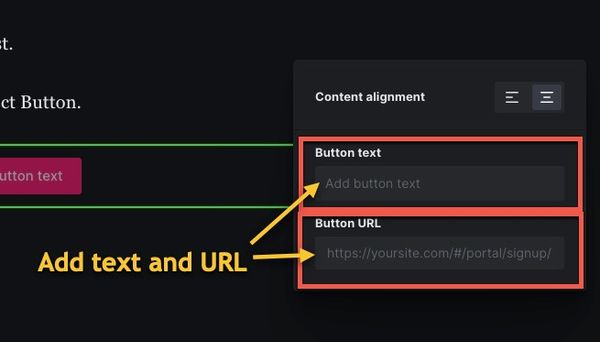
Adding a Button You can add a button to your post to take your reader somewhere. You'll usually want to take your reader to a place where she can purchase a service or product you've created or are promoting. To add a button, in your post, click on the
Formatting with HTML My First Heading My first paragraph. This is a link to an HTML tutorial on w3schools.
Adding a Gallery To add a gallery of up to 9 images, click on the + sign and select Gallery. In the Gallery that opens, click on "Click to import up to 9 images," browse to your photo's, and select them. Gallery of one of my favorite vacation spots!
Adding Bookmarks Let's say we're writing an article about creating a table of contents and why it's important, but we want to keep it more high level. We can direct our readers to an article with more depth using a bookmark as below. Adding a Table
Adding a Gallery 2021 Vacation Highlights! Hanging with friends in Luxembourg. Top of the world in the Swiss Alps.
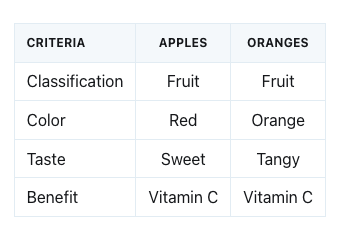
Adding a Markdown Section Using a Dynamic Card The following table was created with Markdown. Criteria Apples Oranges Classification Fruit Fruit Color Red Orange Taste Sweet Tangy Benefit No Doctors Vitamin C Strikethrough ~~word~~ word Superscript ^word^ ^word^ Subscript ~word~ Highlight word !#/bin/bash echo "Hello World!" Blog Formatting - Adding a Table of Contents Adding
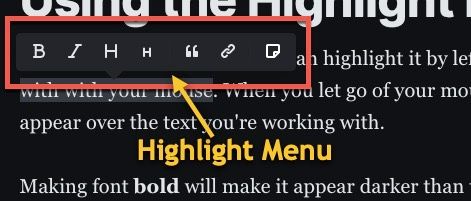
Using the Highlight Menu When you add some text, you can highlight it by left clicking and draging across it with with your mouse. When you let go of your mouse, the highlight menu will appear over the text you're working with. Making font bold will make it appear darker than the